---
title: "Custom SVG Icons: An Exciting WordPress 7.1 Feature"
url: https://wpvibes.com/blog/wordpress-custom-icons/
date: 2026-08-12
modified: 2026-08-17
author: "Rashi"
description: "WordPress 7.1 is about to give developers something they've wanted for years: a real, public way to register custom SVG icons, no build step required. Here's what's coming and exactly how to use it."
categories:
- "Tutorials"
tags:
- "Custom Icons"
- "Gutenberg"
- "PHP"
- "SVG Icons"
- "WordPress"
- "WordPress 7.1"
image: https://wpvibes.com/wp-content/uploads/2026/08/custom-svg-icons-wordpress-71-1024x538.png
word_count: 2651
---
# Custom SVG Icons: An Exciting WordPress 7.1 Feature
For years, adding a custom icon to the block editor meant reaching for JavaScript, a build step, or a workaround that only half-worked. WordPress 7.1 is about to change that.
A new public API for custom SVG icons is landing in the next release. You'll be able to register your own icons, group them into named collections, and have them show up in the `core/icon` block picker, render server-side in PHP, and appear over the REST API, all from a plugin, with no JavaScript build step at all.
This guide walks through building a small plugin called `wpvibes-custom-icons` that registers a collection, adds icons two different ways (inline SVG and file paths), and shows how to use those icons in the block editor, in PHP templates, and as custom block icons. The complete plugin is on **[GitHub](https://github.com/webtechhardik/wpviibes-custom-icons)**.
WordPress 7.1 releases on August 19, 2026. The code below matches what's expected to ship on release day, and we'll come back and verify every detail against the final build once it's out.
## What You'll Build
- **A `wpvibes-custom-icons` plugin** with a registered icon collection called `wpvibes`
- **Three ready-to-use icons**: a heart (registered inline), a star, and a bookmark (both registered from `.svg` files)
- **A bulk registration pattern** that reads every SVG file from a folder and registers each one automatically
- **A practical shortcode** for inserting any registered icon into post content
- **Real integration** with our [PHP-only blocks guide](https://wpvibes.com/blog/php-only-blocks-wordpress/), using a custom icon as a block icon
## Prerequisites
- **WordPress 7.1 or later** (7.1 RC works for development)
- **A few SVG icon files** (or use the ones provided below)
- **Local development environment** (LocalWP, WordPress Studio, wp-env)
- **Basic PHP knowledge**
## Step 1: Understand the API in Three Minutes
WordPress 7.1's custom icons API has three main functions and one organizing concept.
**The functions:**
- **`wp_register_icon_collection( $name, $args )`**: register a named group of icons
- **`wp_register_icon( $name, $args )`**: register a single icon
- **`wp_get_icon( $name, $args )`**: render an icon's SVG in PHP (returns the SVG string)
**The organizing concept: collections.** Every icon belongs to a collection. The collection name becomes a prefix for every icon inside it, which is what makes `core/plus` different from `wpvibes/plus`. This keeps custom icons from colliding with core icons or with other plugins.
**Two ways to provide the SVG when registering:**
- **`content`**: the SVG markup as a string, embedded directly in PHP
- **`file_path`**: an absolute path to an `.svg` file on disk
Use one or the other per icon, not both. Inline `content` is handy for one or two icons; `file_path` scales better for a folder of many.
That's the API. Now let's build with it.
## Step 2: Set Up the Plugin and Register the Collection
While building this, one thing became clear quickly: **the collection has to be registered before you can add icons to it.** If you try to register an icon whose collection doesn't exist yet, the icon silently fails to appear in the picker.
Create a folder inside `wp-content/plugins/`:
wpvibes-custom-icons/
├── wpvibes-custom-icons.php
└── icons/
├── star.svg
└── bookmark.svg
Create `wpvibes-custom-icons.php` with the plugin header and the collection registration:
__( 'WPVibes', 'wpvibes-icons' ),
)
);
}
The collection name (`wpvibes`) becomes the prefix for every icon that follows: `wpvibes/heart`, `wpvibes/star`, and so on. The `label` is what shows up as a section heading in the icon picker.
Activate the plugin from **Plugins → Installed Plugins**. Nothing to see yet, since collections don't render until they contain icons.
## Step 3: Register Icons Two Ways
WordPress supports two ways to register an icon. This step uses both: the inline `content` method for the heart icon, and the `file_path` method for star and bookmark.
### 3.1: Register an inline icon with content
The heart SVG lives directly in the PHP file. Useful when there's just one or two icons and you don't want extra files.
Add this to `wpvibes-custom-icons.php`:
/**
* Step 2: Register icons using inline SVG content.
*/
add_action( 'init', 'wpvibes_register_inline_icons', 20 );
function wpvibes_register_inline_icons() {
wp_register_icon(
'wpvibes/heart',
array(
'label' => __( 'Heart', 'wpvibes-icons' ),
'content' => '',
)
);
}
**How the code flows:**
- The action hooks into `init` at priority `20`, which is later than the collection registration (default priority `10`), so the collection exists before the icon tries to join it.
- The icon name `wpvibes/heart` follows the pattern `collection/icon-slug`.
- The `label` shows in the icon picker; `content` holds the SVG markup.
- The SVG uses `stroke="currentColor"` so the icon inherits color from surrounding text, with no hardcoded fill.
### 3.2: Register icons from .svg files
For icons stored on disk, use `file_path` instead. Save these two files in the `icons/` folder:
**`icons/star.svg`:**
**`icons/bookmark.svg`:**
Now register both from PHP:
/**
* Step 3: Register icons from .svg files.
*/
add_action( 'init', 'wpvibes_register_file_icons', 20 );
function wpvibes_register_file_icons() {
wp_register_icon(
'wpvibes/star',
array(
'label' => __( 'Star', 'wpvibes-icons' ),
'file_path' => WPVIBES_ICONS_PATH . 'icons/star.svg',
)
);
wp_register_icon(
'wpvibes/bookmark',
array(
'label' => __( 'Bookmark', 'wpvibes-icons' ),
'file_path' => WPVIBES_ICONS_PATH . 'icons/bookmark.svg',
)
);
}
Same registration function, same collection. Only `content` becomes `file_path`. WordPress reads the file on demand.
Now open the `core/icon` block in the editor. The picker shows a new **WPVibes** section with Heart, Star, and Bookmark. Insert any of them.
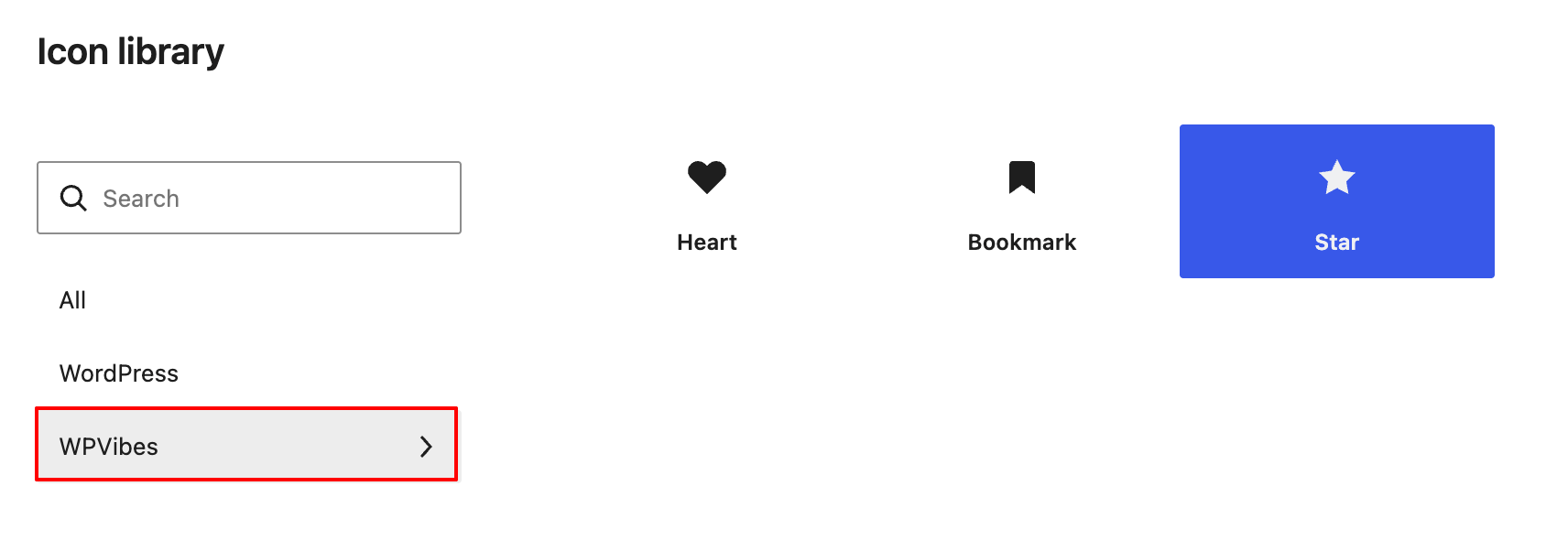Custom Icon Block Picker Added in WordPress
## Step 4: Register a Whole Folder of Icons (Bulk Pattern)
For a real icon library, registering one icon at a time doesn't scale. Nobody writes 30 `wp_register_icon()` calls by hand. The practical pattern: drop SVGs into a folder, and let PHP auto-register everything on the next request.
Replace the individual `wpvibes_register_file_icons()` function with this bulk version:
add_action( 'init', 'wpvibes_register_all_file_icons', 20 );
function wpvibes_register_all_file_icons() {
$icons_dir = WPVIBES_ICONS_PATH . 'icons/';
$svg_files = glob( $icons_dir . '*.svg' );
if ( empty( $svg_files ) ) {
return;
}
foreach ( $svg_files as $file_path ) {
$slug = basename( $file_path, '.svg' );
$label = ucwords( str_replace( '-', ' ', $slug ) );
wp_register_icon(
'wpvibes/' . $slug,
array(
'label' => $label,
'file_path' => $file_path,
)
);
}
}
**Code flow in plain words:**
- **`glob( $icons_dir . '*.svg' )`** returns every `.svg` file in the folder.
- **`basename( $file_path, '.svg' )`** takes just the filename without extension, so `advanced-button.svg` becomes `advanced-button`.
- **`ucwords( str_replace( '-', ' ', $slug ) )`** turns the slug into a readable label: `advanced-button` becomes "Advanced Button" for the picker.
- The loop registers each icon under the `wpvibes/` collection.
Drop any new SVG into the `icons/` folder, refresh the editor, and it appears in the picker. No code changes needed.
This is the pattern used to register the WPVibes icon library. The same six lines register the entire icon set: heart (registered inline earlier), star, bookmark, and any additional icons dropped into the folder.
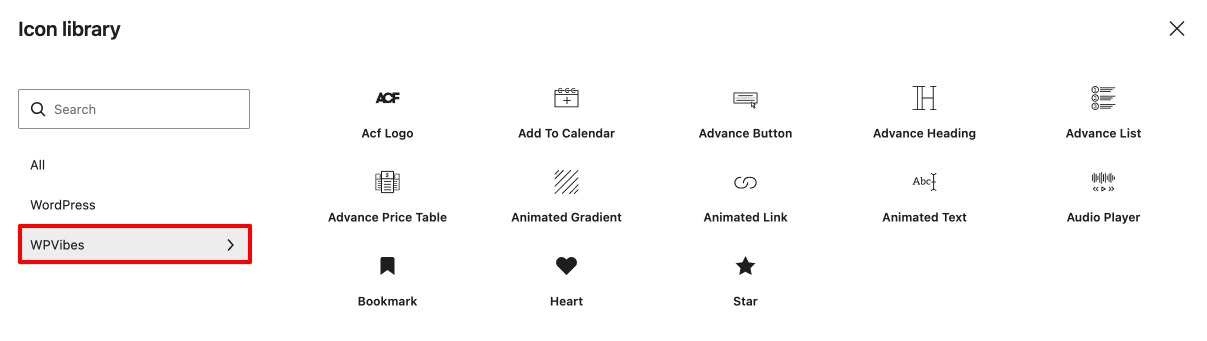Multiple Icons Added in Custom SVG Icon Tab
## Step 5: Use the Icons in Three Places
Once icons are registered, three places automatically get access to them. Here's each one with a small example.
### 5.1: In the core/icon block
The `core/icon` block picker automatically shows every registered collection. Users insert the block, pick a WPVibes icon, and it renders on the frontend. No extra code needed.
Icons also appear at the REST endpoint `/wp-json/wp/v2/icons` (with a companion `/wp-json/wp/v2/icon-collections` endpoint for collections), for any external tool that reads WordPress data.
### 5.2: In PHP via wp_get_icon()
The `wp_get_icon()` function returns an icon's SVG as a string. The simplest form:
echo wp_get_icon( 'wpvibes/heart' );
For real templates, pass a second argument to control size, class, and accessibility:
echo wp_get_icon(
'wpvibes/star',
array(
'size' => 32,
'class' => 'featured-icon',
'label' => __( 'Featured', 'wpvibes-icons' ),
)
);
- **`size`** sets the SVG's `width` and `height` in pixels
- **`class`** adds a CSS class to the SVG element
- **`label`** sets `aria-label` for screen readers
**A practical shortcode example.** Here's a small `[wpvibes_icon]` shortcode that lets anyone drop an icon into post content:
add_shortcode( 'wpvibes_icon', 'wpvibes_icon_shortcode' );
function wpvibes_icon_shortcode( $atts ) {
$atts = shortcode_atts(
array(
'name' => 'heart',
'text' => '',
'size' => 24,
'class' => '',
),
$atts
);
$icon = wp_get_icon(
'wpvibes/' . sanitize_key( $atts['name'] ),
array(
'size' => absint( $atts['size'] ),
'class' => sanitize_html_class( $atts['class'] ),
)
);
if ( ! $icon ) {
return '';
}
return sprintf(
'%s %s',
$icon,
esc_html( $atts['text'] )
);
}
Use it inside any post, page, or widget:
[wpvibes_icon name="heart" text="Hello World"]
[wpvibes_icon name="star" text="Featured post" size="32"]
[wpvibes_icon name="bookmark" text="Save for later" size="20"]
The icon appears next to the text, sized to whatever the `size` attribute says. Because the SVG uses `currentColor`, the icon picks up the surrounding text color automatically.
### 5.3: As a custom block icon in register_block_type()
Custom icons can replace the default Dashicon in any block registration. In our [PHP-only blocks guide](https://wpvibes.com/blog/php-only-blocks-wordpress/), block icons look like this:
'icon' => 'warning', // Uses a Dashicon
With WordPress 7.1 custom icons, that becomes:
'icon' => 'wpvibes/star', // Uses a registered custom icon
The block inserter now shows the branded WPVibes icon instead of a generic Dashicon. This works for both JavaScript-registered blocks and PHP-only blocks.
Same registration function, three consumer contexts. This "register once, use everywhere" pattern is the same architecture used by WordPress's Abilities API, a good sign that WordPress is heading toward a genuinely consistent developer story across its foundational APIs.
## Step 6: Style Custom Icons with CSS
Custom icons look native by default, but real integration means they adapt to their surroundings: inheriting text color, scaling with font size, changing appearance on hover.
The `class` argument passed through `wp_get_icon()` (shown in Step 5.2) already covers the standard case of adding a CSS hook to the SVG. This section covers what to do with that hook, plus patterns that work everywhere the icon appears, including in the block editor where the `class` argument isn't in play.
### 6.1: Use currentColor for color inheritance
The single most important pattern in SVG design: use **`stroke="currentColor"`** (or `fill="currentColor"`) instead of hardcoded colors.
With `currentColor`, an icon inside red text renders red. Inside a dark theme, it renders dark. Inside a link, it matches the link color. The SVG behaves like text.
This is why the icons in our library ship without hardcoded colors. It's the difference between an icon that fits any theme and one that clashes with half of them.
### 6.2: Override color when a specific color is needed
Sometimes an icon *must* be a specific color regardless of surroundings, like a brand mark or a status indicator. Use CSS to force it:
.featured-icon {
color: #f59e0b; /* Amber, regardless of surrounding text */
}
Because the SVG uses `currentColor`, setting `color` on the SVG (via the class from Step 5.2) cascades into its stroke or fill. The icon renders amber even inside dark text.
### 6.3: Size and hover states
For icons rendered through the shortcode or `wp_get_icon()`, the `size` argument handles pixel sizing directly. For CSS-controlled sizing or hover states:
.wpvibes-icon-inline svg {
transition: transform 0.15s ease-in-out;
}
.wpvibes-icon-inline:hover svg {
transform: scale(1.1);
}
### 6.4: When to use CSS classes vs. the size argument
- **Use `size` in `wp_get_icon()`** for one-off cases where the exact pixel size matters and there's no reason to write CSS.
- **Use CSS classes** (via the `class` argument, or on the wrapper element) when the icon appears in many places and should stay consistent, or when styling depends on state (hover, focus, active) or context (inside a link, inside a heading).
For the shortcode example in Step 5.2, both approaches work. Small tweaks per shortcode use the `size` attribute; site-wide consistency uses CSS on `.wpvibes-icon-inline svg`.
## Step 7: Remove Icons and Collections
WordPress 7.1 ships two matching functions for unregistering: one for a single icon, one for a whole collection.
### 7.1: Remove a single icon
Useful during development, or when a plugin update drops an icon:
wp_unregister_icon( 'wpvibes/bookmark' );
The icon disappears from the picker on the next request. Any post that already inserted this icon in a `core/icon` block will render empty (WordPress doesn't rewrite post content).
### 7.2: Remove the entire collection on deactivation
When the plugin is deactivated, all its icons should stop appearing in the picker. Unregistering the collection removes every icon inside it in one call:
register_deactivation_hook( __FILE__, 'wpvibes_unregister_icons' );
function wpvibes_unregister_icons() {
wp_unregister_icon_collection( 'wpvibes' );
}
No need to loop through individual icons. The collection cleanup handles it all.
## Get the Full Plugin
The complete `wpvibes-custom-icons` plugin, with sample SVGs, README, and the full bulk registration pattern, is on **[GitHub](https://github.com/webtechhardik/wpviibes-custom-icons)**.
## How Custom Icons Fit the Bigger Picture
WordPress 7.1's custom icons follow the same architectural pattern as the Abilities API and the [PHP-only blocks guide](https://wpvibes.com/blog/php-only-blocks-wordpress/) covered earlier: register once, use everywhere. The `core/icon` block reads from the registry, `wp_get_icon()` reads from the same registry in PHP, and the REST API exposes it to external tools including AI agents.
WordPress is deliberately building foundational APIs, abilities, icons, block bindings, that follow the same register-once, discoverable-everywhere pattern. Plugin authors who invest in these APIs get their code integrated into the editor, the REST layer, and any tool built on the WordPress data model. Icons look like a small feature on the surface. Underneath, they're another piece of a much bigger shift in how WordPress plugins get built.
## Wrapping Up
This is a small API on paper, but it quietly closes a gap plugin developers have worked around for years. Register a collection, add icons inline or from files, and use them across the block editor, PHP templates, and REST, all without touching JavaScript. The bulk pattern with `glob()` scales from three icons to three hundred without changing the code.
The takeaways:
- **Collections come first**: icons attach to collections, not the other way around
- **Two registration methods**: `content` for inline, `file_path` for icons on disk. Both work in the same collection.
- **Bulk registration beats per-icon calls**: `glob()` over a folder registers unlimited icons in six lines
- **`wp_get_icon( $name, $args )` accepts size, class, and label**: a proper templating function, not just an SVG dump
- **`currentColor` in SVGs is the pattern to follow**: icons that adapt to their surroundings look native everywhere
- **The same registration serves editor + PHP + REST**: one function call, three consumer contexts
Custom icons complete the story for custom blocks. Combined with the [PHP-only blocks guide](https://wpvibes.com/blog/php-only-blocks-wordpress/), a plugin can now register blocks, register their icons, and ship a completely branded editor experience without a build step. Once WordPress 7.1 ships on August 19, this is genuinely one of the releases worth updating for.
## Frequently Asked Questions
### Do I have to register a collection before registering icons?
Yes. Icons must belong to an existing collection, or they silently fail to appear in the picker. Register the collection at default priority on `init`, then register icons at a higher priority (like `20`) so they run after.
### Can I mix inline content icons and file_path icons in the same collection?
Yes. Each `wp_register_icon()` call is independent. Use `content` for one or two icons, `file_path` for the rest. WordPress treats them the same once registered.
### Do custom icons work as block icons in register_block_type()?
Yes. Pass the registered icon name (like `'wpvibes/star'`) to the `icon` key in `register_block_type()`. The block inserter shows the custom SVG instead of a Dashicon. Works for JavaScript-registered blocks and PHP-only blocks.
### Does wp_get_icon() return the icon as HTML, or as a string?
`wp_get_icon()` returns the SVG as a string, so you can echo it directly or wrap it in your own HTML. The second `$args` array accepts `size`, `class`, `label` (for `aria-label`), and `title`.
### What SVG attributes should I remove before registering an icon?
Remove hardcoded `fill` and `stroke` colors, `width` and `height` attributes on the root `