
You published a tutorial three years ago. It still ranks. It still gets traffic. And the screenshots inside it show a version of the interface that no longer exists.
People are still finding it. Following the steps. Getting lost. Closing the tab.
WordPress is built for the moment of publishing. It is not built for what happens to that content afterward. Publishing workflow plugins help you get content live. Nothing in WordPress helps you keep it accurate after that.
This is where Content Lifecycle Manager comes in. It is a WordPress plugin from WPVibes that adds a structured maintenance workflow for everything that happens after you hit publish. The free version is available on WordPress.org.
This post covers what the plugin does, what is in the free version, what Pro adds, and how to start using it on your site.
What happens to your WordPress content after you hit publish?
Once a post is published in WordPress, the system stops paying attention to it. There is no built-in way to track who owns it, when it was last reviewed, when it should be reviewed next, or whether it still says something accurate. The publishing tools end at the publish button.
WordPress is excellent at the moment of publishing. The block editor, scheduling, revisions, and publishing workflow plugins all do their job up to the point where content goes live. After that, the platform steps away.
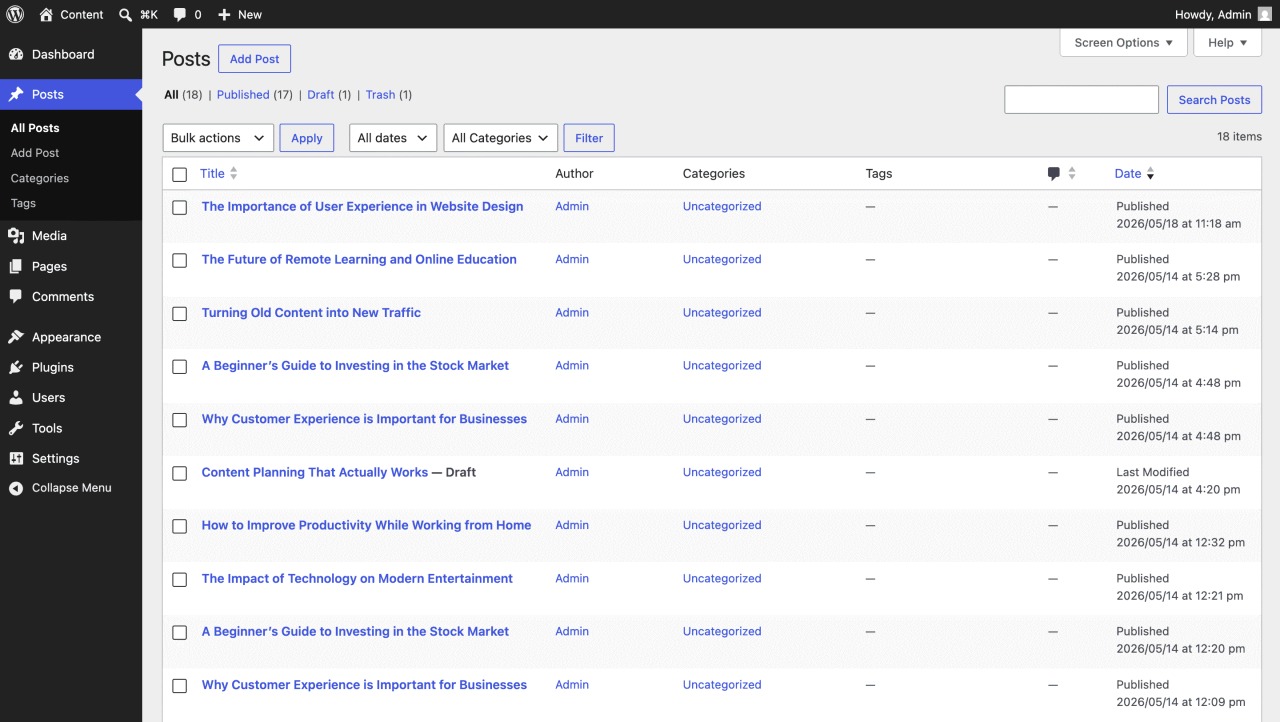
The default post list shows title, author, category, and publish date. None of those columns tell you whether the post is still accurate. None of them surface posts that need a review. None of them point to who is responsible.
The default assumption is that the content team will keep track somehow. Most teams do. They use spreadsheets, project management tools, sticky notes, or memory. None of these live inside WordPress, which means they drift out of sync with the actual content they are supposed to track. The spreadsheet says the post was reviewed in March. The post itself still cites a statistic from 2022.
Over months and years, true grows. This is how published content quietly goes stale on WordPress, and it is one of the biggest unaddressed problems in WordPress content operations.
Why does WordPress content go stale (and why doesn’t anyone notice)?
Content goes stale because the world changes faster than your content does. Statistics get updated by the original source. Tools and plugins get renamed, redesigned, or discontinued. Pricing changes. Team members leave. Each of those changes quietly invalidates a post, but nothing inside WordPress flags it. The post keeps ranking, keeps getting visits, and keeps showing readers information that no longer matches reality.
Four scenarios that probably sound familiar:
The tutorial with the old interface. Your top-trafficked post is a step-by-step guide for setting up a popular tool. You wrote it two years ago. The tool redesigned its onboarding flow last year. Your screenshots show a setup wizard that does not exist anymore. The post still gets 2,000 visits a month. Search Console says it is on page one. You only found out it was outdated when a reader emailed asking which button the screenshot was pointing to, because none of the buttons on her screen matched the ones in your post.
The recipe with the discontinued ingredient. Your slow cooker chicken recipe is the most popular post on your blog. It calls for a specific brand of taco seasoning. That brand discontinued the product two years ago. You found out from a comment that read “love this recipe but I cannot find the seasoning anywhere, what do I use instead?” There are now thirty-one comments asking the same question. The post still ranks. People still try the recipe every week. They just cannot finish it.
The comparison post that lies. You run an affiliate site comparing project management tools. Two years ago you wrote “Tool A is $12 per user, Tool B is $15 per user, here is why Tool A is the better deal.” Tool A raised its price to $19 last spring. Tool B introduced a $14 starter plan. Your post still recommends Tool A on the basis of a price difference that no longer exists. Readers click your affiliate link, see the real price, and bounce. Conversions have been quietly dropping for eighteen months.
The “best of” roundup that is now embarrassing. Your “10 best CRM tools for small business” post was solid when you wrote it. Two of the ten have shut down. One was acquired and renamed. One pivoted to enterprise-only and is no longer suitable for small business at all. The post still ranks for “best CRM small business” and still gets clicks. Half of what it recommends no longer exists. The other half is misleading. You have been meaning to update it for a year.
Each of these is invisible from the outside. The post still loads. It still ranks. Google still sends traffic to it. But two things are happening underneath, and both of them cost you.
What stale content actually costs you
The visible cost is search rankings. Google’s ranking systems documentation describes “query deserves freshness” systems that surface newer content for queries where recency matters. Pages that were accurate when published and have not been updated since slowly slide down the rankings for any query where freshness is part of what users expect. The post that used to be on page one moves to page two, then page three. Traffic drops, often before anyone notices.
The invisible cost is trust. Readers who arrive at outdated content rarely email you to complain. They quietly close the tab and lose a small piece of their confidence in your site. Over time, that erosion compounds across thousands of small interactions, and a brand that used to feel authoritative starts feeling unreliable.
Either cost on its own is enough to take a post seriously. Both happening at once, across hundreds of pages, is what slowly drains the value out of a content library that took years to build.
This is what the plugin is built to surface and solve.
What is Content Lifecycle Manager?
Content Lifecycle Manager is a WordPress plugin from WPVibes that adds a structured maintenance workflow inside WordPress. It lets you assign a named owner to every piece of content, set review dates, and track which posts need attention. Maintenance actions like marking content as reviewed or archiving it are one click away, and every action is recorded automatically. The plugin works with posts, pages, and custom post types. It does not change post status, change permalinks, or alter your content as part of the maintenance workflow.
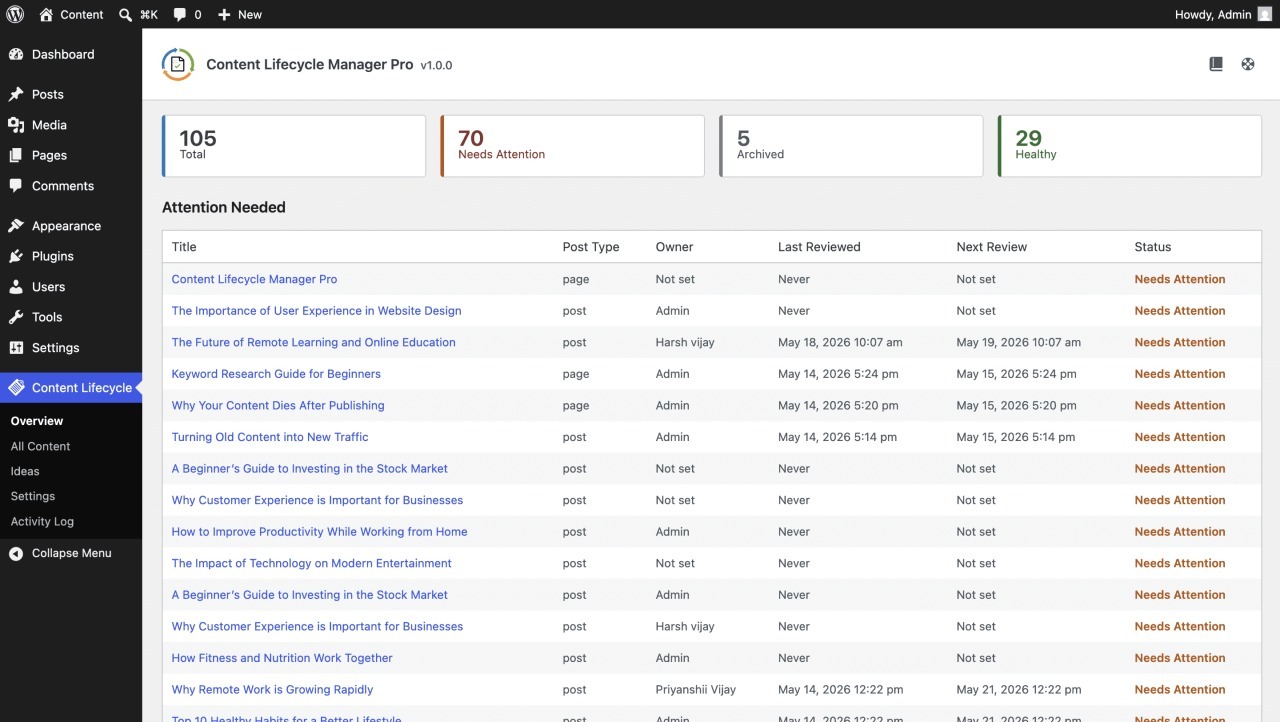
The plugin lives in its own top-level menu inside WordPress, called Content Lifecycle. From there you get an Overview screen with summary cards, an All Content screen with filtering, a Needs Attention queue, an Ideas area, and a Settings screen.
Content Lifecycle Manager is freemium. The free version is on WordPress.org and includes the full lifecycle workflow. The Pro version starts at $39 and adds automation, scheduled reminders, and site-wide visibility on top of the free workflow.
Who is Content Lifecycle Manager for?
Content Lifecycle Manager is built for sites with content worth maintaining. That includes:
Site owners with growing content libraries. If you have 50 or more posts and keeping track in memory or a spreadsheet has stopped working, the plugin gives you a system that lives inside WordPress.
Editorial teams. When multiple people write, the question of who owns what after publish becomes a real problem. Named ownership inside the editor solves it.
Agencies and studios. Managing content across multiple client sites means each site needs its own owner assignments, review schedules, and attention queues. The plugin runs per site, so each client site has its own complete workflow.
Anyone with content that references specific tools, statistics, pricing, or interface details. The kind of content that goes out of date predictably is exactly the kind the plugin is designed to track.
One honest note on who it is not for: brand-new sites with under ten posts. The workflow is overkill until there is enough content to maintain. Come back when you have published a year’s worth.
What does the free version of Content Lifecycle Manager include?
The free version includes the full lifecycle workflow. You can assign owners, set review dates, take maintenance actions, see what needs attention, capture content ideas, and view content health on the Overview screen. Every action is recorded automatically. The free version is enough to run a real content maintenance process on a single site.
Named ownership for every post
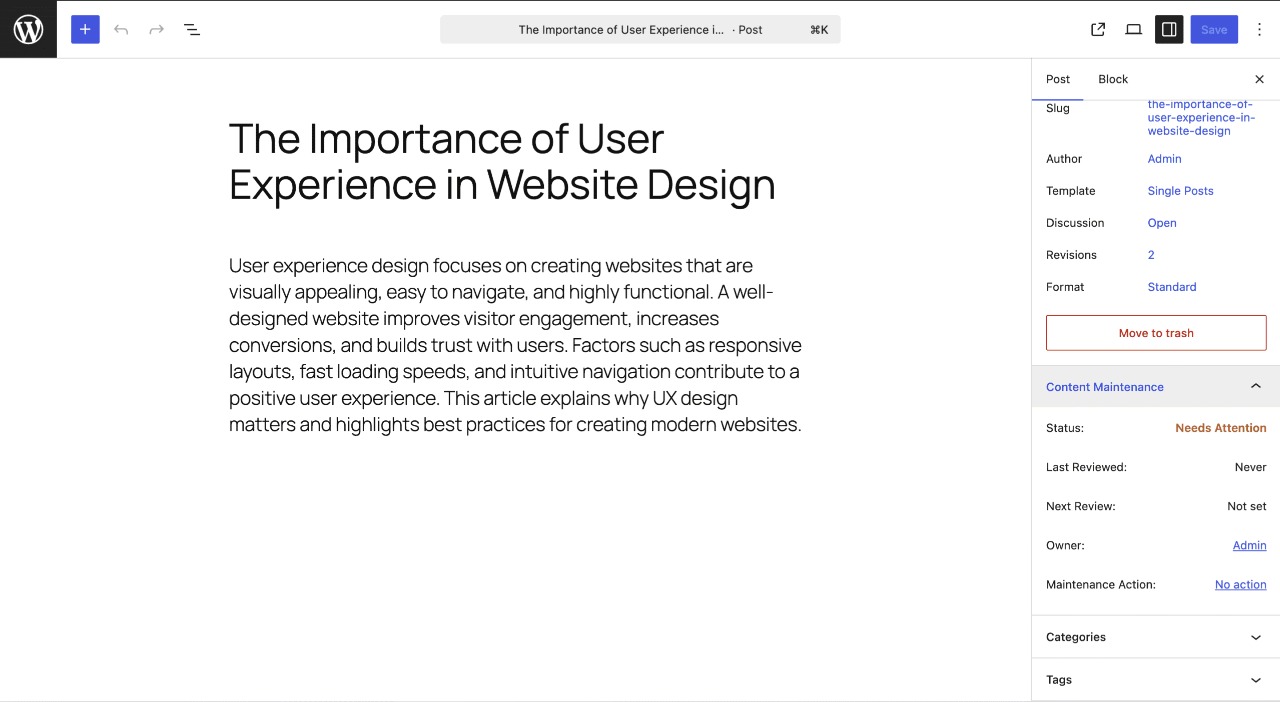
Assign any WordPress user as the content owner of a post or page. The default owner can be set globally, either to the post author automatically or to a specific user. Owner is stored in WordPress and editable from the Content Maintenance panel inside the editor.
Review scheduling and maintenance actions
Set a next review date for any post. When the date arrives, the post surfaces in the Needs Attention queue, where five maintenance actions are one click away: Mark Reviewed, Snooze, Archive, Restore, and Custom Review Date. Each one updates the lifecycle state without touching the published content.
A Needs Attention queue
A dedicated screen for posts that need a review or have no owner. It is sortable and filterable by owner, post type, and overdue status, so you can work through the queue the way that fits your team.
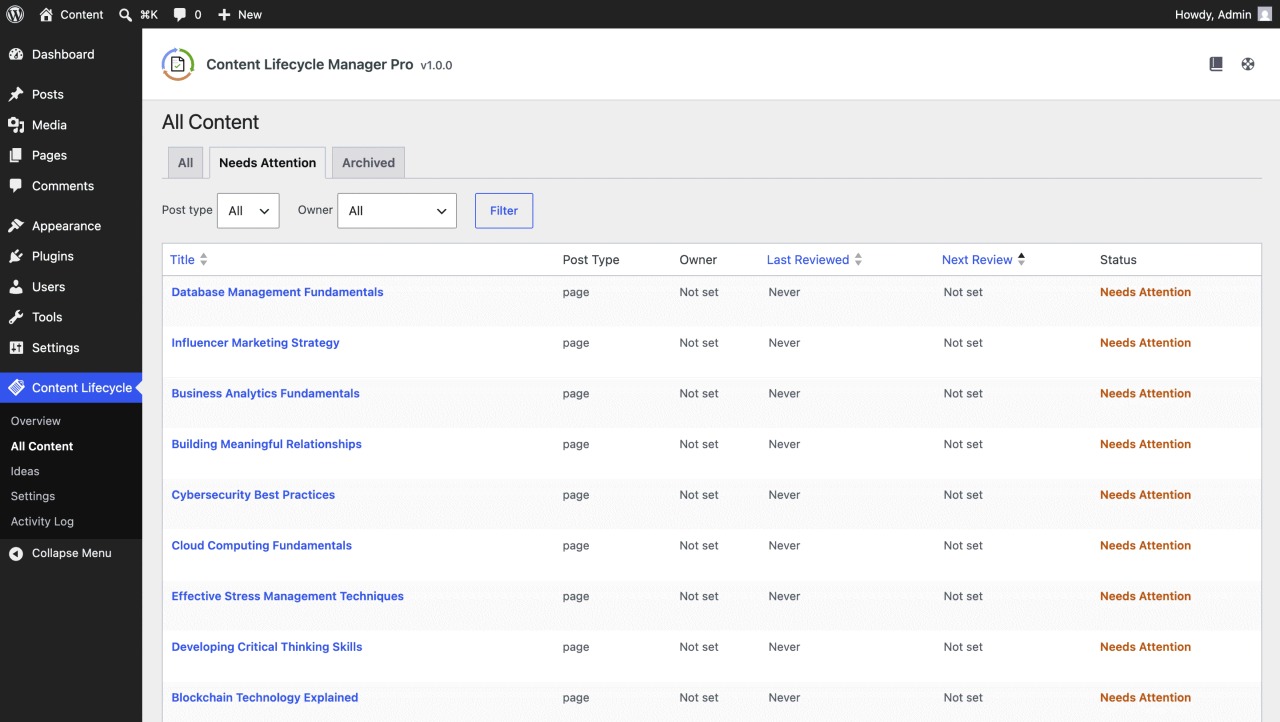
Activity recorded for every action
Every maintenance action is recorded automatically. Recent activity for the current post appears in the Latest Activity panel inside the editor. In the free version, activity is recorded in full but is not browseable through a dedicated screen. That screen is part of Pro, covered below.
A Content Intake flow for existing content
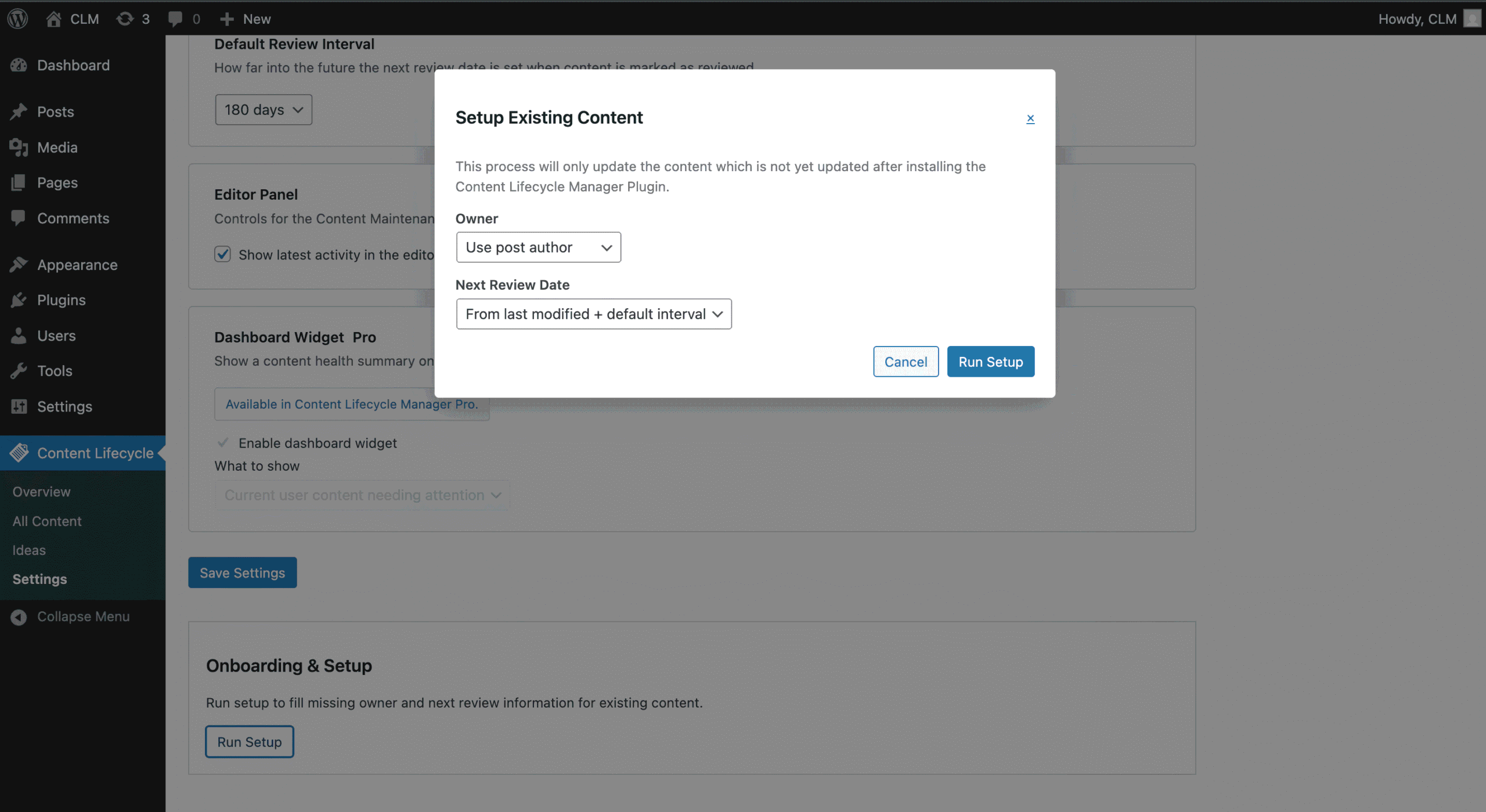
A one-time onboarding wizard that brings existing content into the workflow at once, rather than requiring manual setup per post. You choose which post types to include, set a default review interval, and assign default ownership.
An Ideas area for future content topics
Capture content ideas inside WordPress and convert them to drafts when ready. Planning and lifecycle live in the same place, so the moment an idea becomes a draft, it is already in the system that will track it after publish.
An Overview screen of content health
Summary cards for Total, Needs Attention, Archived, and Healthy counts. The first screen you see when you open Content Lifecycle, and the most useful one for a quick weekly check-in.
That is the free version. Here is what Pro adds on top.
What does Content Lifecycle Manager Pro add?
Pro adds visibility, automation, and team-scale features on top of the free version. The free version lets you run the workflow. Pro makes the workflow come to you: email reminders to owners, an admin digest of site-wide activity, a WordPress dashboard widget for attention items, a dedicated activity log screen, and notes on maintenance actions. Pro starts at $39.
Owner reminders sent by email
Automated emails to content owners when their assigned content is overdue or due soon. Reminder frequency, send hour, weekday, and the due-soon window are all configurable. Each owner gets a personal nudge about their own content rather than a generic admin alert.
Admin Activity Digest
A periodic email summarising maintenance activity across the site. Frequency, hour, weekday, and recipients are all configurable, including custom recipient lists for editors-in-chief, content managers, or agency owners overseeing multiple writers.
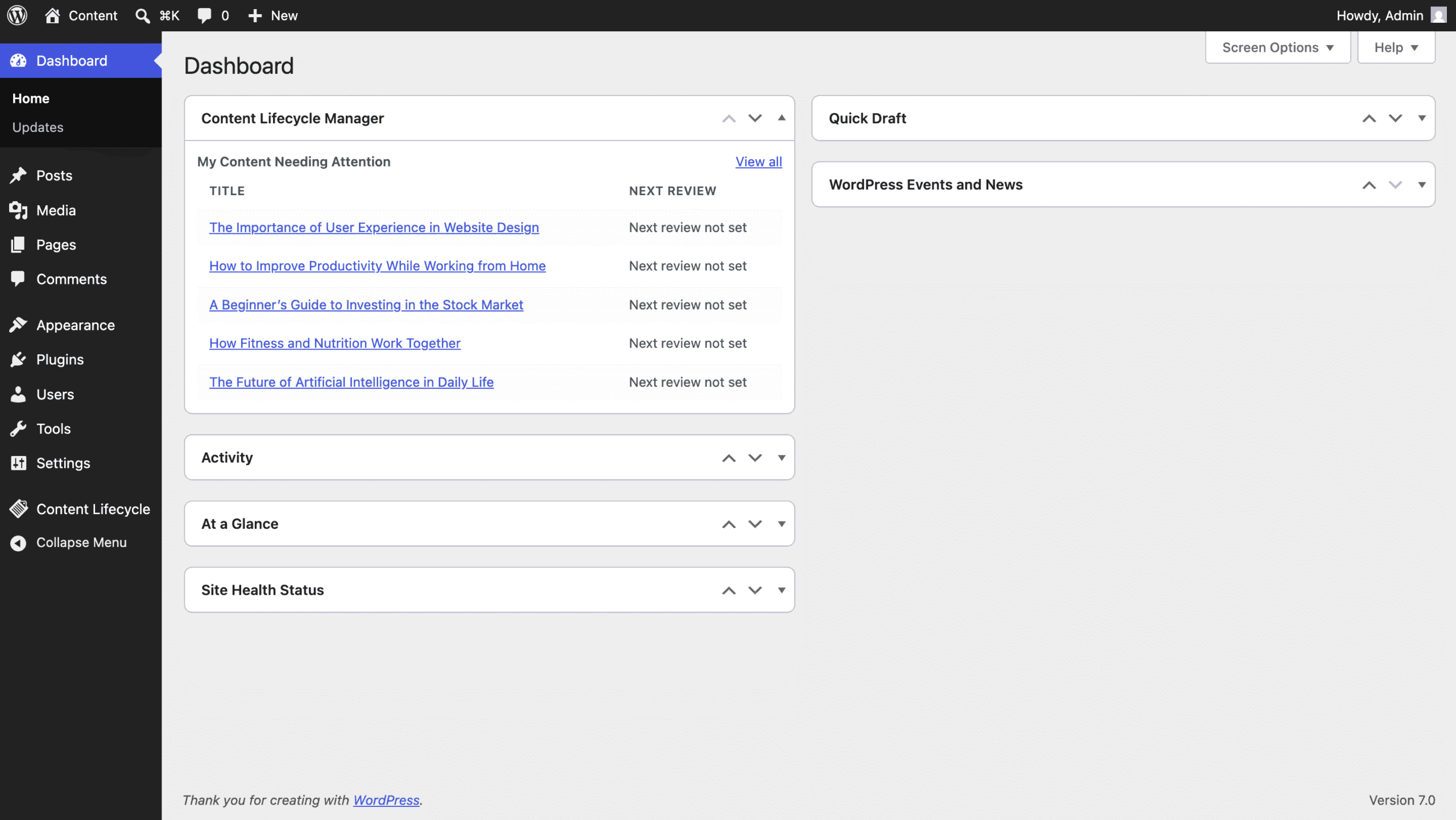
WordPress dashboard widget for what needs attention
A widget on the WordPress dashboard showing content needing attention, with two scopes: “My assigned content” for the current user, or “All content needing attention” site-wide. A quiet daily nudge from a screen owners already see.
Dedicated Activity Log screen
A full-page screen for browsing every maintenance action taken across the site. Filters by actor, post type, and date range, plus pagination for high-volume sites. The free version records activity. Pro adds the screen to browse and search it.
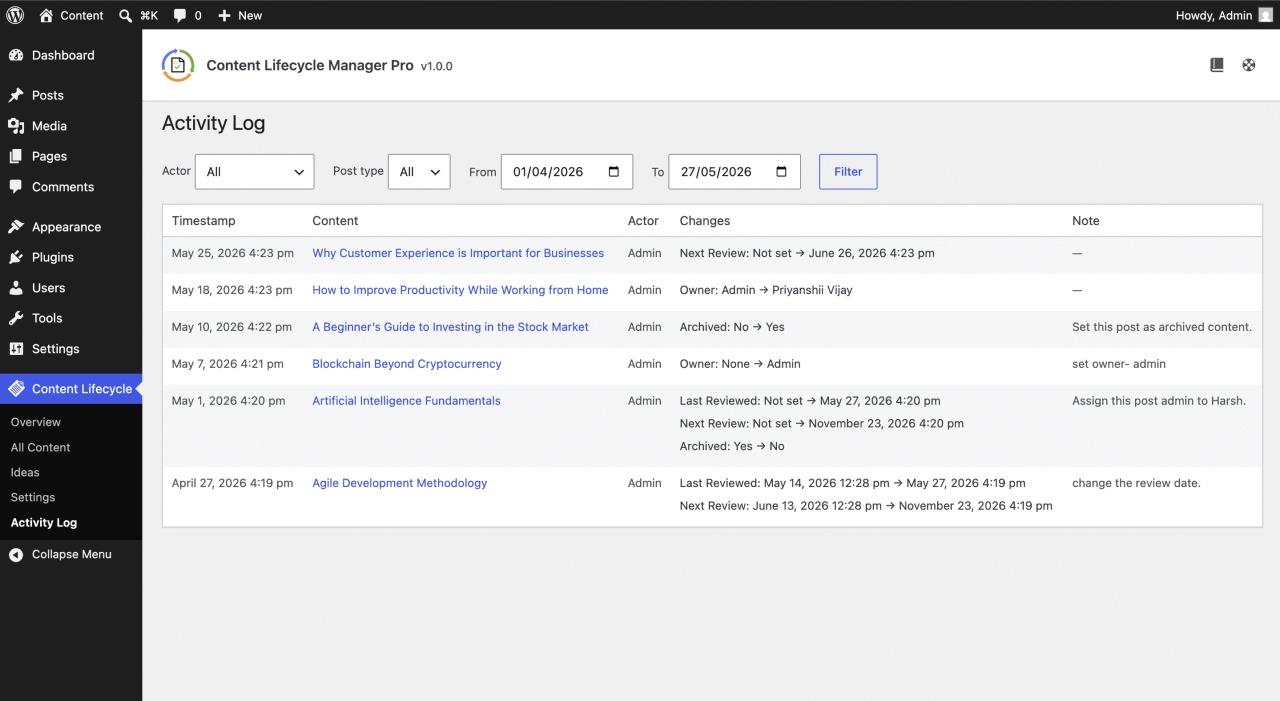
Note field on maintenance actions
A free-text Note field on every maintenance action. Useful for explaining why content was archived, what was updated during a review, or what to check next time. Notes appear in the Activity Log screen alongside the action they are attached to.
Free vs Pro at a glance
| Capability | Free | Pro |
|---|---|---|
| Owner assignment, review dates, maintenance actions | Yes | Yes |
| Needs Attention queue | Yes | Yes |
| Overview screen with content health cards | Yes | Yes |
| Ideas area and Content Intake flow | Yes | Yes |
| Activity recorded for every action | Yes | Yes |
| Owner reminders by email | No | Yes |
| Admin Activity Digest | No | Yes |
| WordPress dashboard widget | No | Yes |
| Dedicated Activity Log screen | No | Yes |
| Note field on maintenance actions | No | Yes |
| Pricing | Free | From $39 |
What does Content Lifecycle Manager not do?
Content Lifecycle Manager is a maintenance workflow plugin. It is not a publishing tool, an editorial calendar, a content editor, or a backup system. It does not unpublish content, change post status, change permalinks, or edit your content. The job is to track and surface what needs attention, and to record what was done. The actual content changes happen inside the normal WordPress editor.
A few clarifications that come up often:
It does not move or unpublish anything. Archiving a post removes it from the review queue permanently. The live page is untouched. The URL is the same. The content stays published exactly as it was.
It does not replace editorial workflow tools. Some plugins handle pre-publish workflow: drafts, deadlines, assignments, and approvals. Content Lifecycle Manager handles what happens after publish. The two run side by side.
It does not auto-update anything. Statistics, screenshots, and links inside your content stay exactly as you left them. The plugin flags posts for human review. It does not make changes on its own.
How is Content Lifecycle Manager different from an editorial calendar plugin?
Editorial calendar plugins manage content before it is published: drafts, deadlines, assignments, approval workflows, and the schedule of what is going live next. Content Lifecycle Manager manages content after it is published: ownership, review dates, maintenance actions, attention signals, and activity history. The two solve different problems and can run side by side.
Editorial calendar plugins optimise for the production pipeline. Their value peaks at the moment something goes live. Once a post is published, the editorial calendar’s job is mostly done.
Content Lifecycle Manager optimises for the post-publish journey. Its value starts the moment something goes live and compounds over time, because the longer content exists, the more chances it has to drift out of accuracy.
There are plugins designed to manage publishing workflow: drafts, schedules, assignments, approvals. They are excellent at what they do. They are not designed to handle what comes after publish, and they would not claim to be. Different problem, different category.
Publishing workflow plugins help you get content live. Nothing in WordPress helps you keep it accurate after that.
How to get started with Content Lifecycle Manager
To get started with Content Lifecycle Manager, install the free version from WordPress.org. Activate the plugin. Run the Content Intake flow to bring existing content into the workflow. Then start assigning owners and review dates to your most important posts.
Three steps:
1. Install the free version from WordPress.org. Search for “Content Lifecycle Manager” in your WordPress admin under Plugins > Add New, or download it directly from WordPress.org.
2. Run the Content Intake flow. After activation, the onboarding wizard walks you through enabling post types, setting a default review interval, and bringing existing content into the system. This is the step that takes you from “plugin installed” to “workflow live.”
3. Start with your most important posts. Do not try to set owners and review dates for every post on day one. Start with your top-trafficked or most strategically important posts and work outward over the following weeks.
When the free version has been running long enough that you want the workflow to come to you instead of you going to it, Pro becomes useful. Owner reminders, the admin digest, the dashboard widget, the activity log screen, and notes on actions all add up to a workflow that runs itself in the background. Plans and pricing for Pro start at $39.
Frequently asked questions
Common questions about Content Lifecycle Manager, the free version, the Pro version, and how the plugin handles your existing content.
Is Content Lifecycle Manager free?
Yes. The free version is available on WordPress.org and includes the full lifecycle workflow: owner assignment, review scheduling, maintenance actions, the Needs Attention queue, Ideas, and the Overview screen. A Pro version adds owner reminders, an admin activity digest, a WordPress dashboard widget, a dedicated activity log screen, and notes on maintenance actions. Pro starts at $39.
What is the difference between the free and Pro versions of Content Lifecycle Manager?
The free version includes the full lifecycle workflow. Pro adds five things on top: owner reminders sent by email, an admin activity digest, a WordPress dashboard widget showing what needs attention, a dedicated activity log screen with filters, and a note field on every maintenance action. Pro is for teams that want the workflow to come to them rather than checking the Needs Attention screen manually.
Will my data carry over if I upgrade from Free to Pro?
Yes. Activity log history recorded in the free version is preserved and becomes browseable through the Activity Log screen once Pro is active. Meta and Ideas data are identical across both versions. Settings values for Pro-only fields are remembered, so any configuration done in advance takes effect once Pro is activated.
Does Content Lifecycle Manager change my published posts?
No. The plugin does not change post status, change permalinks, or edit content as part of the maintenance workflow. Review-related fields are only updated when you explicitly choose a maintenance action, such as marking content as reviewed or snoozing a review. The plugin tracks and surfaces. It does not modify.
Can I use Content Lifecycle Manager with custom post types?
Yes. In Settings, you can enable the plugin for any public post type registered on your site, including custom post types from WooCommerce, LearnDash, page builders, or any other plugin or theme. The maintenance workflow is the same across all enabled post types.
How does the archive feature work in Content Lifecycle Manager?
Archiving removes a post from the review queue permanently. The post stays published. The URL stays the same. The content is unchanged. Archiving is a maintenance decision that tells the system “this post is settled, do not surface it for review again.” If you change your mind later, you can restore the post and it returns to the active workflow
Start keeping your WordPress content accurate
Most WordPress sites invest heavily in getting content published. What happens to that content afterward is where most of the content quality risk lives, and where the easiest accuracy wins are.
Publishing workflow plugins help you get content live. Nothing in WordPress helps you keep it accurate after that. Content Lifecycle Manager is the system for the second half.
Install the free version on WordPress.org
See plans and pricing for Pro (starts at $39)
Content Lifecycle Manager is built by WPVibes for site owners, editorial teams, and agencies who want a structured way to keep published content accurate over time.
Leave a Reply